
 Geekybar
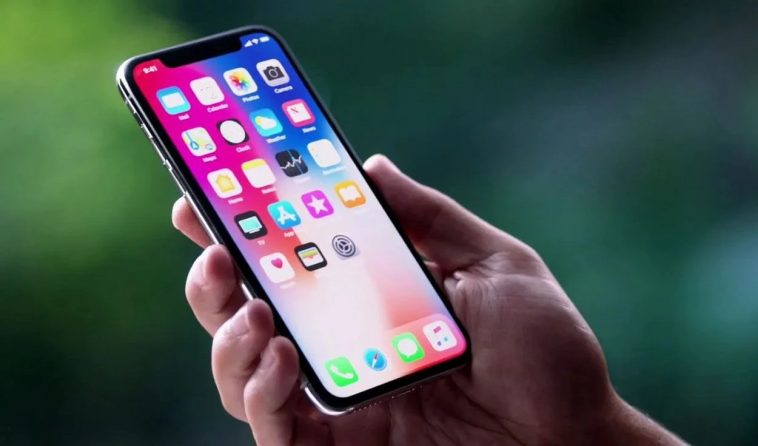
Any application that you use on an iPhone phone or an iPad tablet that wants to monitor your internet activity must have your permission. This feature has been available on Apple devices since the release of iOS 14.5; however, few users are aware of it.
If you see a request to track your activity, you can accept it or tell the app not to track you. Regardless of your response, you can continue to use the app’s full functionality.
If you tell the app not to track you, the app developer will be unable to access the system advertising identifier (IDFA), which is commonly used for tracking. The app is also not permitted to track your activity using other information that identifies you or your iPhone, such as your email address.
How do I manage the permissions for activity tracking?
You can authorise or revoke an app’s permission to track your activity at any time:
Check your privacy settings to see which apps have asked to track your activity. Go to settings> privacy> tracking on your iPhone.
Toggle between deactivating and activating the tracking permission for a specific app.
You will no longer see the requests if you disable allow apps to request tracking you in the privacy settings. As long as this setting is turned off, it will be treated as if you had asked the app not to track you.
In an unusual endurance test, the iPhone 13 Pro outperforms the Nokia 3310.
The test entailed tossing both devices from the top of a spiral staircase. While the iPhone is damaged and has a significant scratch on its back, the Nokia 3310 is completely shattered.
Similarly, the front of the iPhone 13 Pro does not show damage after several launches and turns on normally, unlike the Nokia 3310, which does.



GIPHY App Key not set. Please check settings