
 Christina d'souza
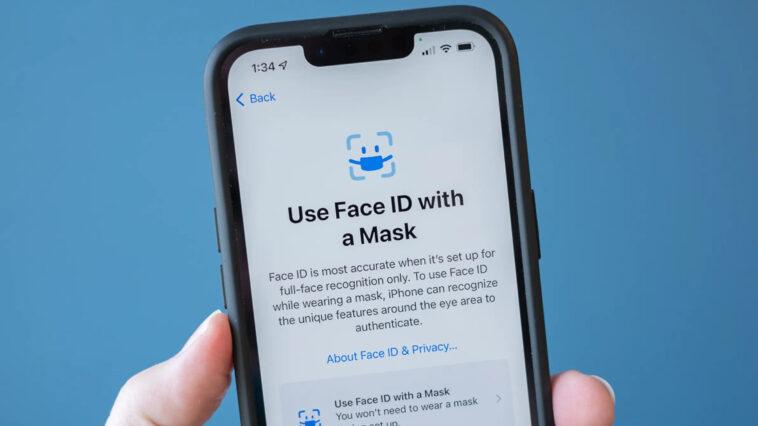
Finally, and after more than two years since the start of the COVID-19 coronavirus pandemic and its variants, Face ID allows you to unlock your iPhone even if you are wearing a mask, a function that arrived with version 15.4 of iOS this week.
Face ID mask support is only available from iPhone 12 onwards, so users of the iPhone 11 series will not be able to use this tool.
Apple’s facial reader now allows the smartphone to be unlocked even if its user wears a mask. We were able to test the feature on an iPhone 13 Pro and it’s great and has been recognized by other specialized testers.
It also adds that it is possible to use Face ID if you wear a mask to use Apple Pay and autofill passwords in other applications and Safari.
How to configure Face ID to be able to unlock the iPhone 13 with the mask on
The first thing to keep in mind is that it is important that we have a compatible iPhone. In other words, if we have any device from the 11 lines, although we can update to iOS 15.4, the version of the operating system for iPhones 11 does not include the new Face ID support, since it does not have a TrueDepth camera system as advanced like his older brothers.
If we have an iPhone 12 or some other recent model, the first step is to update our phone to iOS 15.4 in case we have not updated it. We simply have to go to Settings, select General and then Software Update, to click on Download and Install the new version.
If the iPhone is already up to date, we can finally activate our Face ID with the new support for masks. Go to Settings, tap on the Face ID & Passcode option, and within this section, the “Face ID with mask” setting will appear. Just flip the switch to leave it on and follow the steps to finish the setup.
Once your phone is up to date, go back into Settings and tap on Face ID & Passcode. Within this section, only if you have a compatible iPhone, a new option called “ Face ID with a mask ” will appear. Flip the switch to turn it on and follow the steps to complete setup.
Just before we leave the feature on, our phone will explain to us that the “iPhone can recognize the unique features around the eye area to authenticate itself”, but warns that Face ID will be more accurate if you set it to not work with a mask.
After following these steps, you will be able to start unlocking your iPhone even if you are wearing the mask. It’s important to note that the feature doesn’t work with sunglasses, as Face ID requires the user’s eyes to be correctly scanned.



GIPHY App Key not set. Please check settings