
 Geekybar
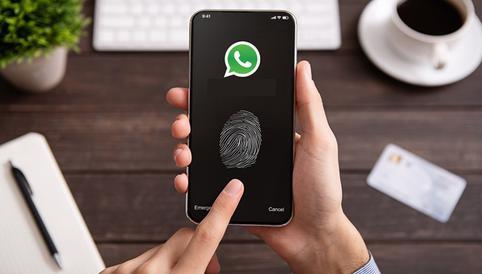
No one will be able to link your WhatsApp account to WhatsApp Web or Desktop without your permission, since today you will learn how to configure the app so that it always asks for your fingerprint.
Currently, WhatsApp has the following versions: the first is the mobile app, which you download to your cell phone through Google Play for Android or the App Store for iOS; the second is WhatsApp Web, a platform that allows you to chat from Google Chrome or any other browser; and the third is WhatsApp Desktop, a native program for Windows or MacOS computers or laptops. If you want to access the last two you will have to link your account by scanning a QR code, so today we will show you a new privacy trick so that they will ask you for your fingerprint first.
Did you know that anyone with access to your cell phone can link your WhatsApp account on WhatsApp Web or Desktop? in this way you will be able to see all the content in real time, even, due to the “Multi-device” mode, even if you leave your house, deactivate WiFi or mobile data, your account will not be unlinked, remember that this mode allows other versions of WhatsApp to work independently
There are many ways to detect if someone is connected to your WhatsApp account in the Web or Desktop version, you just have to press the icon of the three vertical points (top right) and choose the “Linked Devices” option, here you go to see in which browser or computer your account is active, likewise, you will get the exact time of the last connection and the operating system of the PC or laptop. Prevent others from accessing your account with the following privacy trick.
HOW TO CONFIGURE WHATSAPP TO ASK FOR YOUR FINGERPRINT BEFORE LINKING YOUR ACCOUNT
First, it is important that you change the security pattern or password of your mobile and that nobody knows it, thus you will reinforce the security.
Now, make sure that WhatsApp does not have pending updates in the Google Play or Apple App Store.
Open the app and touch the three vertical dots. Several options will be displayed, choose the one that says “Settings”.
Click on “Account” > “Privacy”.
Scroll down and activate the “Fingerprint lock” section.
Place your fingerprint on the sensor until WhatsApp registers it.
Go back to the “Chats” tab, click on the three dots again and go to “Linked devices”.
Click on the “Link a device” button.
Finally, place your fingerprint to unlock the camera and scan the QR code. Open your WhatsApp account in WhatsApp Web or Desktop.
Ready, keep in mind that after activating the fingerprint lock you will also have to place the same every time you want to access WhatsApp . It is without a doubt one of the best privacy and security options offered by the aforementioned green app for Android or Apple iOS.
How to have mobile WhatsApp updated forever
Open the Google Play Store.
Type WhatsApp in the search bar.
Access the first application that appears.
Since you already have it installed on your device, the following buttons may appear: “Uninstall” and “Open” or “Uninstall” and “Update”.
The next step is to press on the icon of the three vertical points, you place them in the upper right corner.
Finally, two options will be displayed, tap on “Automatically update”.
Done, now WhatsApp will always update only to its latest version.
Do you have a problem with WhatsApp ? Do you need to report it? If you have any kind of problem, then you should write to their contact email: smb_web@support.whatsapp.com or android_web@support.whatsapp.com . You can also make the same request from your iPhone through the exclusive service for iOS.



GIPHY App Key not set. Please check settings