
 Christina d'souza
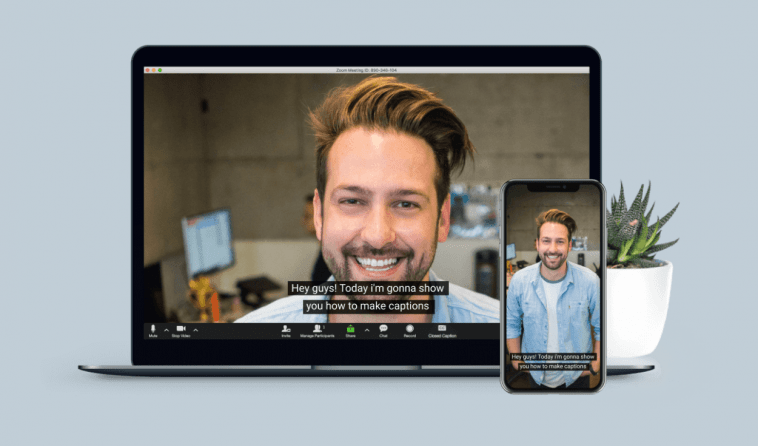
After announcing it earlier this year, Zoom has finally started rolling out support for automatic captions to all free accounts on the platform. Thanks to this feature, users can get a real-time transcript of what is being discussed during a video call.
“It is important to us that everyone is able to connect, communicate and participate successfully using Zoom. Without the right accessibility tools, people with disabilities face huge barriers when using video communication solutions,” said Teresa Larkin, manager of product marketing, meetings, and chat at Zoom.
How to activate automatic subtitles in Zoom?
To access this functionality, it is first necessary to enable it in your account from the Zoom website:
- Access Zoom from your browser and log into your account
- Go to the navigation menu and click on settings
- Go to the meeting tab
- Go to the meeting section (advanced) and activate the subtitle lever.
When you perform this procedure, the options to “enable the live transcription service to automatically transcribe meetings” and “allow to view the full transcript in the meeting side panel” will appear on the screen.
From then on, every time you are in a video call, you can enable the automatic subtitles function directly from the toolbar, located at the bottom of the Zoom interface.
Devices that support automatic captions
Desktop clients:
- Windows
- macOS
- Linux
Mobile apps:
- Android
- ios



GIPHY App Key not set. Please check settings