
 Christina d'souza
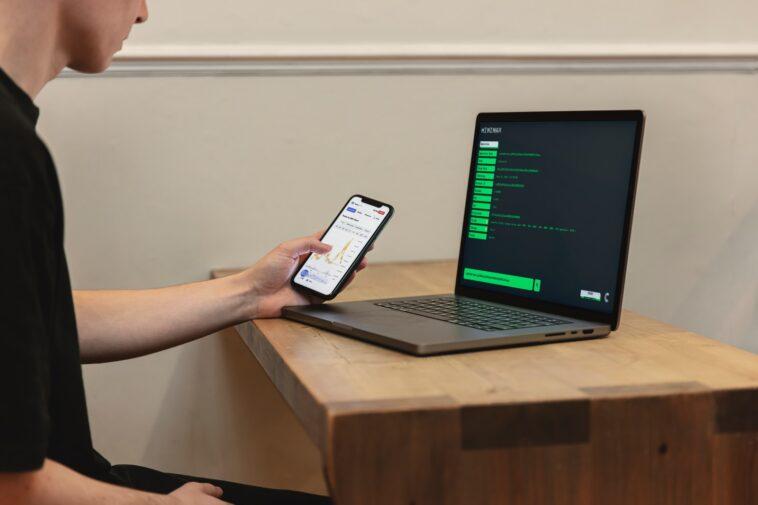
There are some actions that can compromise the security of smartphones because it does not matter if they have an Android or iOS operating system, they are exposed to attacks if they are not updated or the user does not pay enough attention to their care.
Below are five essential tips to improve the security and privacy of mobile devices, according to the Office of Internet Security (OIS).
1. Protect access to the device
Using strong passwords and secure unlocking mechanisms are the main advice. When starting to use a new device, it offers the user to implement security and blocking actions.
If you do not have a PIN, alphanumeric password, pattern, fingerprint or facial recognition activated, or if you want to renew, you can establish one as follows:
Android: Settings > Security and Location > Screen lock > Password/Fingerprint or Smart Lock > Facial recognition.
iOS: Settings > Touch ID/Face ID and Passcode.
2. Check that the device is updated
It is necessary that the operating system is always updated, since previous versions may have vulnerabilities that would have been fixed in the latest version available.
To check if you have the latest version or to update the device, follow these steps:
Android: Settings> System> Advanced settings> System update.
iOS: Settings> General> Software update> Download install.
3. Make backups and encryption on the device
To safeguard information in case of loss, theft or change of the mobile phone, copies must be made in the cloud, which must be encrypted to ensure that the files will not be seen by third parties.
Google: Settings > Google > Backup > Create a backup. Encryption is done by default, although you can encrypt an external memory in Settings > Security & location > Encrypt SD card storage.
iOS: Settings > (Name) > (Select device) > iCloud Backup > Back Up Now. Enabling the option will be done automatically, and encryption is done by default.
4. Download and install
It is always recommended to install apps from official stores like Play Store or App Store and avoid APKs or accept downloads from dubious sites or links. In addition, you can review the permissions of downloaded apps as follows:
Android: Settings > Applications. There you must select the desired app and click on Permissions to deactivate or activate what is considered necessary.
iOS: Go to Settings to find your installed apps and select the one you want to review to disable permissions.
5. Activate two-step verification or double authentication factor
Finally, to add an extra layer of security to the accounts, the following steps can be followed:
Android: Settings> Google> Manage your Google account> Security> Verification in two steps> Get started.
iOS 10.3 or higher: Settings > (name) > Password and security > Activate two-factor authentication > Continue. On iOS 10.2: Settings > (Apple ID) > Password & security > Turn on two-factor authentication > Continue.
Keeping the operating system and applications up-to-date will prevent vulnerabilities or security holes; And if a catastrophe occurs or your device is lost, taking regular backups will help ensure you don’t lose your data forever.



GIPHY App Key not set. Please check settings