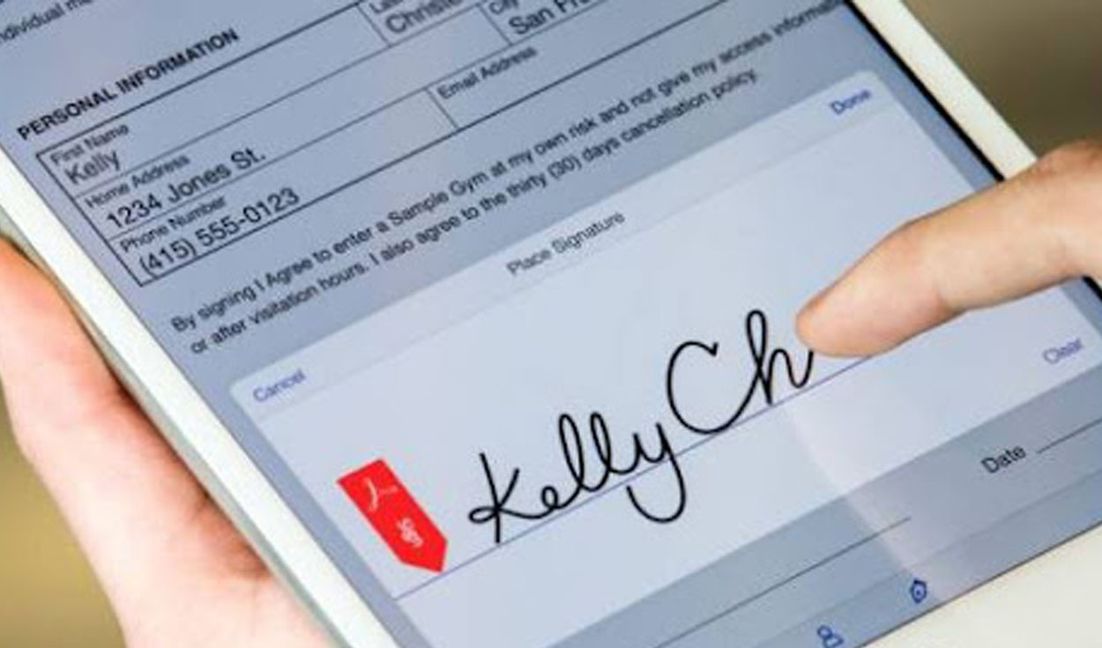
It is becoming more and more common to receive a PDF document by mail and to be asked to sign it digitally. However, it can be laborious for many users, since we are used to printing the documents, filling them, scanning them, and, finally, returning them by email. Fortunately, there is a method that will allow you to put your signature in a simpler way, you only need to have a smartphone or a tablet connected to a Wi-Fi network or with mobile data. Do you want to learn it? Here we tell you.
You may not know it, but the Adobe company (the creators of the PDF) created Adobe Fill & Sign, a free application that allows users, whether Android or iOS, to scan, fill and sign these types of documents. Being an official program, available in the Play Store and App Store, the presence of malware is ruled out, so you can download it on your mobile device.
1. First you must download the application on your iPhone or Android. Once installed, you will have to grant it some permissions for it to work correctly.
2. Enter the application and touch the pen icon.
3. The option Create signature will appear. Using your finger (or a stylus) you should make your rubric on the device screen.
4. Once you are done, you will need to save that signature so that you can use it in future documents.
5. Open a PDF document, it can be from Google Drive, Dropbox, or another location, and hit the pen icon.
6. The signature will be integrated into the document that you can send directly.
7. To do this you will have to press the share icon (located in the upper right corner) and then choose WhatsApp, Telegram, Gmail, or any other platform you want.
For the sake of productivity in times of remote work. The integration of Google Drive and Microsoft Office has finally been consummated amid the changes made to the Workspace project of Mountain View. The documents in formats such as .doc, .ppt, and .docx are already editable from a browser directly.
Previously, both Google Drive and Microsoft Office handled their own formats. In the case of Microsoft, the already generalized .doc and .docx could be opened in the Mountain View platform, but editing them required conversion to Docs, which caused some changes in the document.
The John Wick series has established itself as one of the few major action series today that… Read More
After binge-watching Shadow and Bone season 2, many viewers have been left with a million… Read More
The thought of Thor coming down from the heavens and saving us from catastrophes is… Read More
The action movie industry has been dominated by superhero franchises such as Marvel and DC… Read More
You might be disappointed when you watch Tiller Russell's latest documentary series, Waco: American Apocalypse,… Read More
The Pope’s Exorcist is a horror movie released in 2023 that’s based on the life… Read More
